
As soon as you import the APM model data from the Sparx APM excel template, its time to import your application inventory and integrations from Excel into the Sparx EA APM catalogs.
Now your model actually reflects your landscape.
Note:This guide applies to Enterprise Architect 16 and earlier, where the APM Accelerator is delivered as an external MDG technology, model patterns and an APM Model Add-in. If you are using Enterprise Architect 17, follow our EA 17 APM accelerator setup guide instead, which uses the in-built APM Accelerator and APM Example Model.
The next question is: How do we turn that model into views people can use?
This guide shows you how to:
- Use the APM Model Add-in to generate integration diagrams from your Application catalog in Sparx EA.
- Import the pre-built APM dashboards into Prolaborate so CIOs, architects, and business owners can explore the portfolio without opening Sparx Enterprise Architect.
The goal is not full automation, but accelerated view-building: you spend less time drawing diagrams and dashboards from scratch, and more time analyzing what they tell you.
Ready to try this in your own repository?
Download the Sparx Systems APM Accelerator to get the metamodel, MDG, example model, Excel template and dashboards all-in-one package.
Where This Guide Fits in the APM Accelerator Journey
By the time you start this guide, you should already have:
- The APM MDG and model patterns enabled in your EA repository
- The APM Excel template and import profiles configured via MDG Integration for Microsoft Office
- Your applications and their integrations imported into the APM Application Inventory, with connectors created between source and target applications
If integrations are not yet in place, import the APM data from the Excel template into the EA model first. The Model Add-in and dashboards rely on that data.
What the APM Model Add-in Actually Does
The APM Model Add-in is part of the Accelerator pack. Its job is simple but powerful:
- It scans the Application Inventory and the integration connectors between applications
- It then creates a Viewpoint package with a set of integration diagrams, typically one per application, using a standard layout and a diagram legend designed for APM use cases
You still control the model and its structure; the add-in just takes care of the repetitive work of drawing diagrams that reflect the relationships already in your repository.
Prerequisites for Using the Sparx APM Model Add-in
Before you enable the add-in, confirm the following:
- The APM Model Add-in XML file (for example, APM Model Add-in.xml) is available from the Accelerator pack
- Application integrations have been imported, so there are connectors between your Applications (for example, from the Integrations sheet in the APM Excel template)
- You have a role that can import XML packages and enable add-ins in EA (typically a model admin or lead architect)
Once those are ticked off, you can configure the add-in.
Configuring the APM Model Add-in in Sparx Enterprise Architect
Follow these steps in order; they mirror the original Accelerator documentation but are written as a single flow you can follow end to end.
Step 1 – Import the APM Model Add-in XML
- In Sparx EA, open the model where your APM content lives.
- Navigate to Publish → Model Exchange → Import, or press CTRL + ALT + I to open the Import Package from Native/XML File dialog.
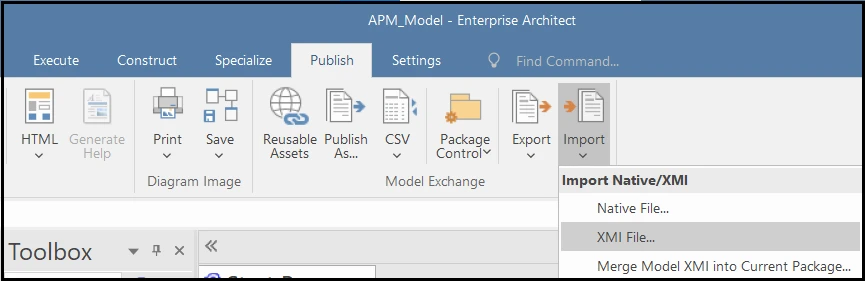
- Browse to the APM Model Add-in.xml file from the Accelerator pack and select it.

- Click Import and, when prompted, choose Yes to import the Model Add-in as a root node in the model.

- After this, you’ll see a new root node representing the Model Add-in package in your Project Browser.

Step 2 – Enable the Sparx APM Add-in
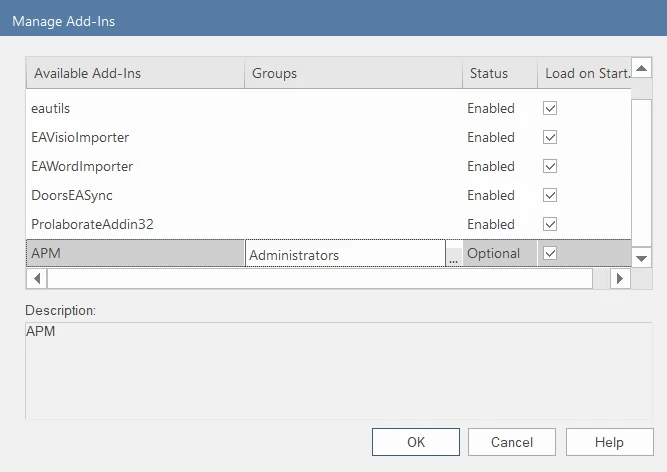
- Go to Specialize → Manage Add-Ins and enable the APM add-in.

- If security is enabled on your EA model, the admin must select which groups are allowed to use the add-in. Only users in those groups will see the APM menu options.
Step 3 – Reload the project
- Reload the EA project by pressing CTRL + SHIFT + F11. This ensures the add-in is fully initialized in your current session.
Step 4 – Generate integration diagrams
- In the Project Browser, right-click the package where your applications are stored, usually the Application Inventory package under the Application Layer.
- From the context menu, choose Specialize → APM → Create Integration Diagrams.

Sparx EA now runs the add-in and generates diagrams:
- A Viewpoint package is created
- Under it, a sub-package named something like “Integration Diagrams” is added
- For each application, an integration diagram is created, including a diagram legend to highlight different integration types and attributes
- When the generation is complete, Sparx EA shows a “Completed” prompt.
At this point, you’ve moved from “data in the model” to a set of consistent diagrams that you can use in design reviews, architecture boards, and stakeholder conversations.
Let our experts help you align your architecture with business goals using proven governance frameworks and clear metrics.
Making Sense of the Generated Integration Diagrams
Once the add-in has finished, take a moment to review what it produced:

- Open the Viewpoint → Integration Diagrams folder and pick a few critical applications (for example, core billing, ERP, CRM).
- On each diagram, look at:
- Inbound and outbound arrows – which systems depend on this application, and which systems it depends on, supporting end-to-end traceability across the application landscape.
- The legend – how integration types and statuses are visualized (for example, different colors for real-time vs batch, live vs planned).
- Check that naming and colors make sense for your stakeholders; you can still adjust diagram layout, notes and colors if needed.
The key win is that the diagrams are generated from the model, so if your integrations change and you re-generate diagrams, they stay in sync with reality.
APM Dashboards in Prolaborate: What You Get Out of the Box
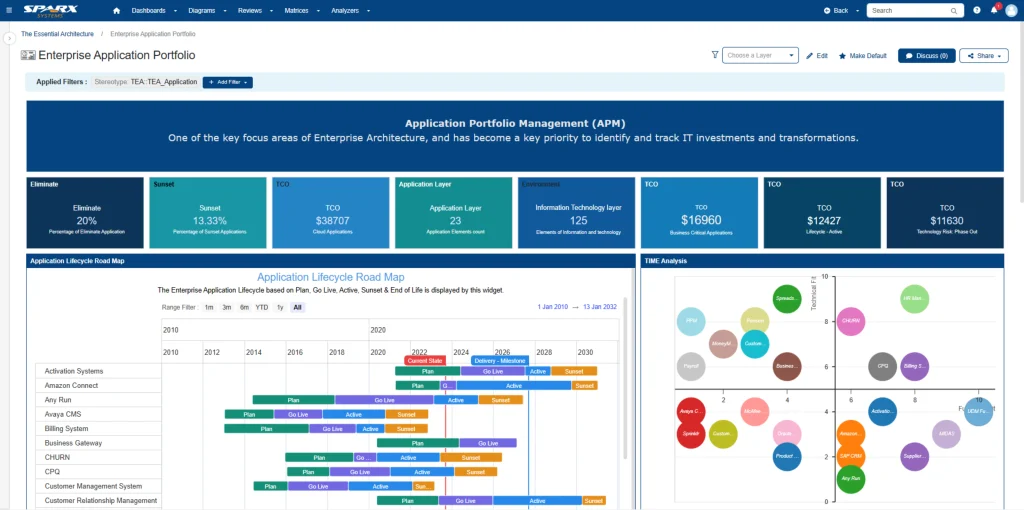
The Accelerator also includes a Prolaborate_APMDashboard export that defines a ready-to-use “Enterprise Application Portfolio” dashboard. This dashboard uses the APM model structure and the imported data to provide:
- A high-level view of applications by domain, sub-domain or business capability, often delivered through card widgets that provide instant portfolio snapshots.
- Lists and charts showing integration counts, project impact or owner / organization breakdown.
- Widgets designed specifically for portfolio questions (for example, which applications are highly integrated, which ones are under change).
Rather than designing dashboards from scratch, you import this configuration and then tweak it for your environment.
Prerequisites for Importing APM Dashboards into Prolaborate
Before you import the APM dashboards, ensure the following prerequisites are met:
- Prolaborate version is 5.1.0 or above
- Your user has admin rights in Sparx EA and Prolaborate.
- The Model Harvest (or your own APM model based on the Accelerator) is loaded in Sparx EA and connected as a repository in Prolaborate, so widgets resolve correctly against the model data
This helps avoid broken configurations or empty widgets after import.
How to Import the APM Dashboards into Prolaborate
Now, let’s walk through the actual dashboard import steps. These closely follow the original “Import APM Dashboards” section in the accelerator guide.
Step 1 – Open the correct Prolaborate repository
- Sign in to Prolaborate and select the repository that is connected to your APM model (the one holding your Application, Domain, Organization and Project catalogs).
Step 2 – Use the Dashboard Import option
- Navigate to the Dashboard page in that repository.
- In the top-right corner of the dashboard page, open the menu and choose Import.

Step 3 – Select the correct Prolaborate_APMDashboard file
- From your local machine or shared drive, browse to the Accelerator pack and select the appropriate Prolaborate_APMDashboard file:
- Choose Prolaborate_APMDashboard_MSSQL if your Prolaborate repository uses Microsoft SQL Server.
- Choose Prolaborate_APMDashboard_MySQL if your Prolaborate repository uses MySQL.
This ensures the imported dashboard definitions match your database backend.
Step 4 – Run the import
- Click Import to load the dashboards into Prolaborate.
After a successful import:
- The “Enterprise Application Portfolio” dashboard becomes available with all its layouts and widgets already configured against the APM model.
You now have a working portfolio dashboard that reads directly from your Sparx EA APM model.
Equip your team with the skills to build a robust APM framework. Master model repository setup, attribute management, and dashboard configuration.
What You Can Do with the “Enterprise Application Portfolio” Dashboard
Once the dashboard is imported, you can start using it to support real discussions:
- CIO and leadership views
- Use tiles and charts to quickly show application counts by domain, risk or lifecycle state, enabling executive-ready APM assessments in Prolaborate.
- Highlight top integration hubs that represent operational or change risk.
- Architect and portfolio manager views
- Drill down from a high-level card to specific applications and their integration diagrams in Sparx EA.
- Use filters (by domain, owner, project impact, etc.) to focus on a subset of interest.
- Data quality and modeling feedback
- Spot obvious issues (for example, applications without owners, domains with no applications, orphan integrations) and feed those back into modeling tasks.
You can treat the out-of-the-box dashboard as a starting canvas: keep the structure, but tailor labels, filters and chart types to match your internal vocabulary and KPIs.
Related Articles
- How Large Organizations Use Sparx Prolaborate APM Dashboards to Engage CIOs, Architects and Business Owners
- Implementing a Connected APM Ecosystem with Sparx EA
- Landscape Views for Strategic Application Classification: A Practical APM Guide
- Essential Techniques for APM Data Imports with Sparx EA and Prolaborate


