UML Profile Diagram with Enterprise Architect

What is a UML Profile Diagram (UML 2.x)?

A UML Profile Diagram provides a way to extend UML without changing the core language. It does this by defining stereotypes and tagged values (and, where needed, constraints) that you can apply to UML elements, connectors, and their components. A Profile is the collection of these extensions, focused on a particular modeling problem or domain, so teams can reuse consistent constructs across projects.

You add and organize Profile content using the Profile pages of the Diagram Toolbox; in Sparx Systems Enterprise Architect, a Profile diagram is any diagram created inside a «profile» Package, and those Profile pages are available directly in the Toolbox.

Start Your Training Journey Today!

Access our Beginner-friendly UML courses and step confidently into advanced Topics.

Benefits of Using a Profile Diagram in UML

The UML Profile Diagrams brings huge benefits in software and enterprise architecture domains, some of the notable benefits are:

Domain‑specific extensions without altering UML

Define stereotypes and tagged values to represent domain concepts (for example, API endpoint, device driver, data lineage) while retaining standard UML notation. This improves precision without introducing new symbols.

Consistent semantics and governance

Apply uniform stereotypes and tags across models and repositories. Reviewers interpret elements consistently, and terms such as «Service», «Message», or «Event» have explicit, reusable definitions.

Tool support and reuse in Enterprise Architect

Publish the profile as an MDG Technology so custom elements, connectors, and toolbox pages are available to projects. This provides a repeatable setup with controlled defaults.

Analysis, validation, and automation

Structured tags enable reliable querying, reporting, and code generation. They also support validation rules and quality checks that operate on stereotype metadata.

Applicable to platforms and specialized domains

Profiles support platform and domain standards (e.g., SysML, MARTE, UML) and organization‑specific conventions, ensuring alignment between modeling guidelines and implementation practices.

Basic Elements and Relationships in a UML Profile Diagram

Profile Diagram Toolbox Icons in Sparx EA

UML Element Type Icon in EA Toolbox Description
Profile uml class element in ea toolbox Create a Package with the «profile» stereotype; this Package holds the profile’s definitions and diagrams.
Stereotype uml interface element in sparx ea toolbox The mechanism that extends UML elements or connectors. A stereotype adds meaning through tagged values and, optionally, constraints or icons.
Metaclass datatype element in uml ea tool The UML kind you are extending (e.g., Class, Component, Dependency); it is the target of the «extends» link from your stereotype.
Enumeration datatype element in uml ea tool A data type made of fixed literals that your tagged values can reference.

Profile Diagram Connectors and Relationships

UML Connector Type Icon in EA Toolbox Description
Extension uml associate connector States that a stereotype extends a UML metaclass (the «extends» relationship).
Generalization uml generalization connector Indicates inheritance between stereotypes so the child stereotype inherits the parent’s tags and rules.
Tagged Value uml compose connector Creates a reference‑type (RefGUID) tag on the source stereotype. The tag’s name comes from the target role, and the value can only reference elements that carry the target stereotype.

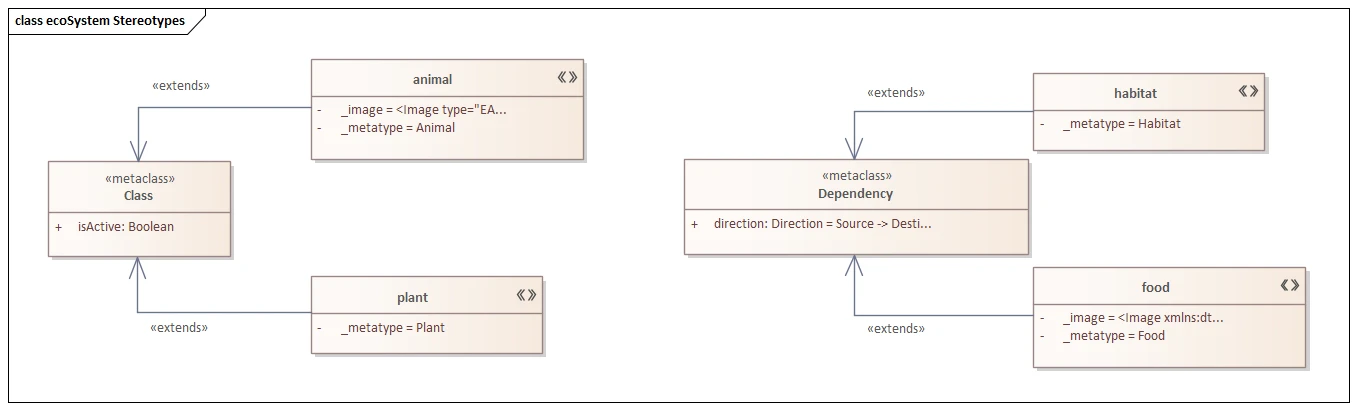
UML Profile Diagram Example (Stereotypes, Metaclass, Tagged Values)

This sample UML profile Diagram in Sparx Enterprise Architect defines a small vocabulary and binds it to UML by using «extends» relationships. The connections are the key and tell which UML elements each stereotype can be applied to, and why.

  • «animal» and «plant» → extend Class. The «extends» connectors from these stereotypes to the Class metaclass mean they are valid only for Class elements. Their tagged values include _metatype (which controls how the element appears in the Browser and in dialogs) and an optional _image (a custom icon). The intent is simple: classify domain entities as animals or plants and carry lightweight metadata with them, without changing the UML Class itself.

  • «habitat» and «food» → extend Dependency. Here the «extends» connectors target the Dependency metaclass, so the stereotypes are applied to connectors, not nodes. A tag such as direction makes the arrow semantics explicit (e.g., Source → Destination) so diagrams read unambiguously. Purpose: distinguish kinds of relationships while still using standard Dependency behavior and rendering.

  • Metaclass compartments show native properties. The Class metaclass lists “isActive:Boolean”; the Dependency metaclass shows a direction setting. These compartments remind modelers which built‑in properties exist and, if you wish, can be used as defaults or constraints in your profile documentation.

Ready to Start Modeling Smarter?

Get Sparx Systems Enterprise Architect and begin creating powerful UML package diagrams with ease. Buy EA Now!

FAQs: UML Profile Diagrams

1) What is a UML Profile Diagram?

A Profile Diagram defines stereotypes and tagged values (and optional constraints) that extend standard UML for a specific domain. It lets teams add meaning without changing UML itself.

2) What’s the difference between a stereotype and a tagged value?

A stereotype is the extension you apply to an element or connector; tagged values are the properties that come with that stereotype. In UML 2.x, tags act like attributes of the stereotype.

3) How do I apply a stereotype to an element or connector in EA?

Select the element, open Properties, and set Stereotype. If you use a profiled element from your Toolbox, EA applies the stereotype and adds its tagged values automatically. For existing items, run Synchronize Tagged Values and Constraints to add any missing tags.

4) How do I share my profile with the team?

Publish an MDG Technology that includes your Profile (and optional toolbox/diagram profiles). Distribute the MDG and enable it via Technologies → Manage Technology so everyone uses the same stereotypes and toolbox pages.

Learn More